How-to guide · AmporIQ
Windows volume or mic level keeps changing by itself: how to stop it
By Mirage Interactive ·
The short answer
Several things can move a Windows volume or microphone level without you touching it: call and meeting apps, games, audio driver software, and USB or Bluetooth devices that reconnect with their own level. Windows has no built-in lock for a level, so the fix is two parts: switch off the usual causes, then guard the level.
Check the settings below first. If the level still drifts, AmporIQ keeps a speaker or microphone at the rule you choose and puts it back when something changes it.
Settings to check first
-
Stop Windows lowering sound during calls
Open the classic Sound control panel (run mmsys.cpl), go to the Communications tab and choose "Do nothing".
mmsys.cpl -
Turn off exclusive control
In the same panel open your speakers or microphone, Properties, Advanced, and clear "Allow applications to take exclusive control of this device". An app that takes exclusive control can set its own level.
-
Turn off automatic level adjustment in your call app
Zoom, Teams, Discord and similar apps can adjust the microphone level themselves. Look for an automatic volume or automatic input level option in the app's audio settings and switch it off.
-
Check audio driver software
Driver control panels from your sound card or motherboard maker, and equaliser apps, can reset levels. Open them and look for a volume or level setting that is applied automatically.
Keep the level where you set it with AmporIQ
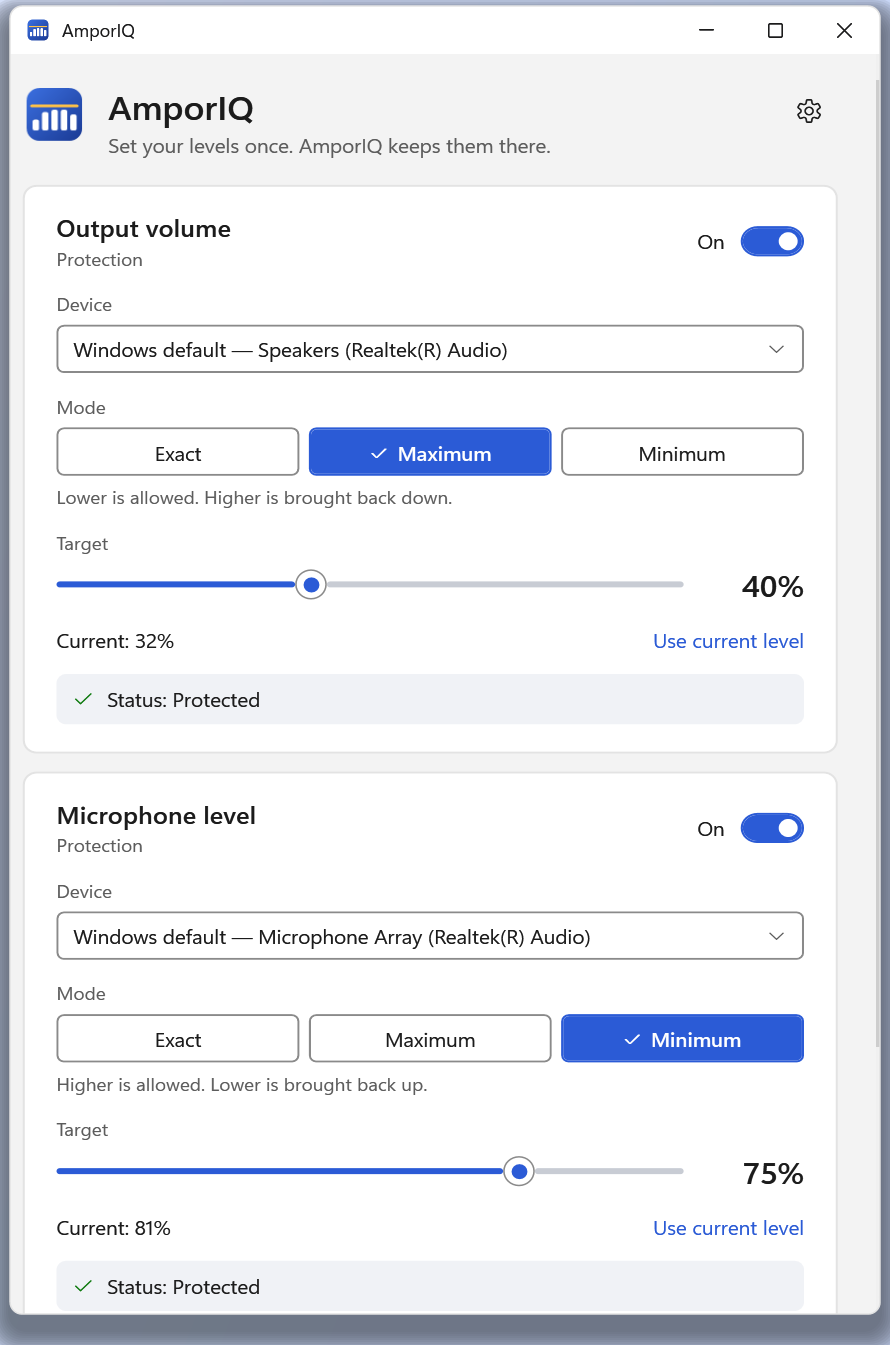
AmporIQ sits in the system tray. Windows tells it when a device level changes; if the new level breaks your rule, AmporIQ sets it back.
-
Pick the device
Follow whichever device is the Windows default, or guard one specific device. If that device is unplugged, AmporIQ waits and resumes when it comes back.
-
Choose a rule
Exact keeps one level. Maximum means lower is fine but never louder than your limit. Minimum means higher is fine but never quieter than your floor, which suits a microphone that keeps getting turned down.
-
Set the target level
For example a maximum of 40% for your speakers, or a minimum of 75% for your microphone. Output and microphone have separate rules.
-
Check the status
Each device shows Status: Protected while the rule is active. Leave AmporIQ running; it can start with Windows if you want it to.
What AmporIQ does and does not do
- It controls the Windows level setting for a device, the same number as the volume slider. It does not process, compress or limit the sound itself, so it is not hearing protection.
- It corrects the level after Windows reports a change, so a very brief jump may still be audible.
- For the default device it follows the Windows default for media and apps, not the separate communications default.
- It never records or listens to your microphone, and needs no account.
Do it in minutes

AmporIQ
A one-time purchase in the Microsoft Store. No subscription, no account, no telemetry.

Questions
Why does my microphone volume keep dropping?
Usually a call app or driver software adjusting the level automatically. Turn off the automatic option in the app, and set a Minimum rule in AmporIQ so the level is raised back if anything lowers it.
Will it stop sudden loud sounds?
No. It keeps the volume setting within your rule and corrects it after something changes it. A loud moment inside a video or game plays at whatever level you have set.
Does it work with Bluetooth and USB headsets?
It works with any device Windows lists as an output or input with a level, and waits for a specific device to reconnect.