How-to guide · Wake Reason Finder
Why did my PC wake up from sleep? Find the cause on Windows
By Mirage Interactive ·
The short answer
Windows does record what woke it, but the answer is scattered across the power commands, the event log, device settings and scheduled tasks. The usual culprits are a device (a mouse, a network adapter or a USB controller), a wake timer, or a scheduled task allowed to wake the PC.
Work through the built-in checks below to name the cause, then switch off that one thing. If you would rather see it all in one place, Wake Reason Finder (formerly WakeAuditIQ) reads the same Windows records and explains them in plain language.
Find the cause with Windows alone
These checks are built into Windows 10 and 11 and cost nothing. Run the commands in Windows Terminal or Command Prompt; the last two need it opened as administrator.
-
Ask Windows what woke the PC last
This prints the device or event that ended the most recent sleep.
powercfg /lastwake -
List the devices allowed to wake it
Anything on this list can wake the PC. Keyboards, mice and network adapters are normal; an unexpected USB controller or adapter is worth a look.
powercfg -devicequery wake_armed -
Check wake timers and programs that stay awake
Run both as administrator. The first lists timers set to wake the PC, the second lists programs and drivers asking Windows not to sleep.
powercfg /waketimers powercfg /requests -
Read the event log for the history
Open Event Viewer, go to Windows Logs, then System, and filter the current log on the source Power-Troubleshooter. Each "The system has resumed from sleep" entry has a Wake Source line.
-
Switch off the cause
A device: Device Manager, open the device, Properties, Power Management, clear "Allow this device to wake the computer". A scheduled task: Task Scheduler, open the task, Conditions, clear "Wake the computer to run this task". Wake timers in general: Power Options, Change plan settings, Change advanced power settings, Sleep, Allow wake timers, set to Disable.
Or see it in one place with Wake Reason Finder
Wake Reason Finder brings those records together into one sleep audit. It is read-only: it explains what Windows recorded and never changes a setting.
-
Run an audit
The main audit needs no administrator rights.
-
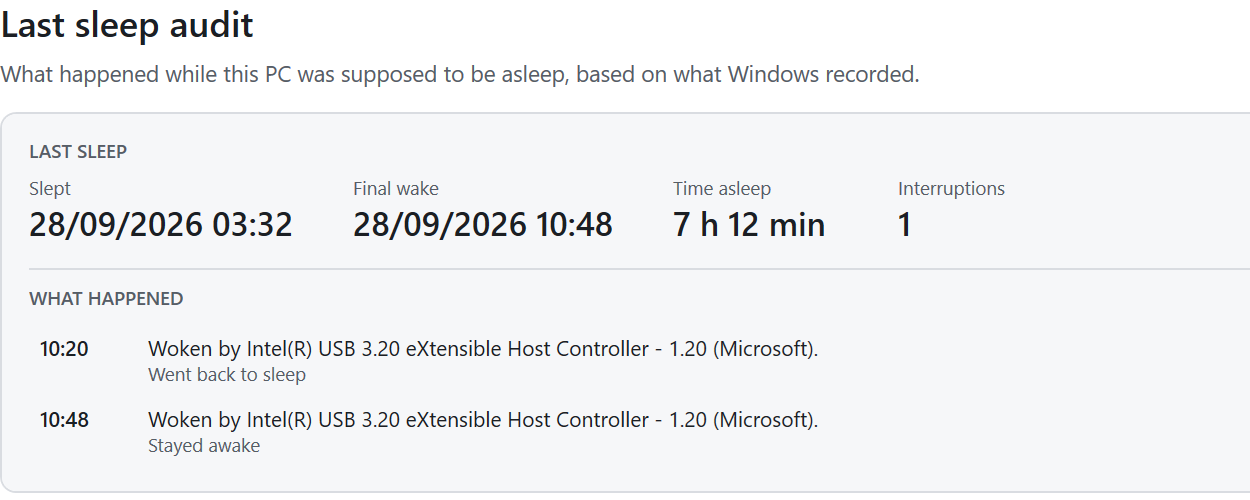
Read the last sleep
You get a timeline: when the PC went to sleep, each time it woke, whether it went back to sleep, and what Windows recorded as the cause of each wake: a device, a wake timer or a scheduled task.
-
See if it keeps happening
The app shows which cause woke the PC most often, so a one-off is easy to tell from a pattern.
-
Optionally run the admin check
With your permission it also shows the programs and drivers blocking sleep right now, active wake timers and every scheduled task allowed to wake the PC.
-
Fix it yourself
It opens the right Windows setting, Device Manager or Task Scheduler. Advanced commands are shown as text for you to run; the app never runs them for you.
What to know first
- It explains what Windows recorded. If Windows did not log a wake source, no tool can name one.
- Some details (programs blocking sleep, active wake timers, every wake task) need the optional admin check, which asks for Windows permission once.
- Laptop battery and Modern Standby results are tested with recorded data, not yet on a wide range of laptops.
- It needs Windows 10 (version 1809) or later.
Do it in minutes

Wake Reason Finder
A one-time purchase in the Microsoft Store. No subscription, no account, nothing sent anywhere.

Questions
Why does my PC wake up at 3 a.m.?
Usually a device, a wake timer or a scheduled task. powercfg /lastwake and the Power-Troubleshooter entries in Event Viewer show which one Windows recorded for the most recent wake.
Is Wake Reason Finder the same app as WakeAuditIQ?
Yes. WakeAuditIQ was renamed Wake Reason Finder. It is the same app and the same Microsoft Store listing.
Will it stop my PC waking up?
It finds the cause and shows you where to change it. It does not change settings itself.
Does it work on a desktop PC?
Yes. On a desktop there is no battery section; on a laptop it also shows the battery used while asleep.