How-to guide · Save Chats as PDF
How to save a WhatsApp chat as a PDF on Windows (with photos)
By Mirage Interactive ·
The short answer
WhatsApp cannot save a chat as a PDF by itself. You export the chat from the phone app (a .zip with the messages and, if you choose, the photos), copy that file to your PC and convert it.
Save Chats as PDF (formerly ChatToPDFIQ) does the conversion offline: a clean, paginated, searchable PDF with the photos in place, plus a report of anything that was missing from the export.
Step 1: export the chat from WhatsApp
Do this on the phone. Menu names can differ slightly between WhatsApp versions.
-
Android
Open the chat, tap the three-dot menu, More, Export chat, then choose Without media or Include media.
-
iPhone
Open the chat, tap the contact or group name at the top, scroll down and tap Export Chat, then choose Without Media or Attach Media.
-
Send the file to your PC
Share the exported .zip to yourself by email, a cloud folder or a cable. Choose media if you want the photos in the PDF; the WhatsApp desktop app exports text only.
Step 2: turn it into a PDF with Save Chats as PDF
-
Open the export
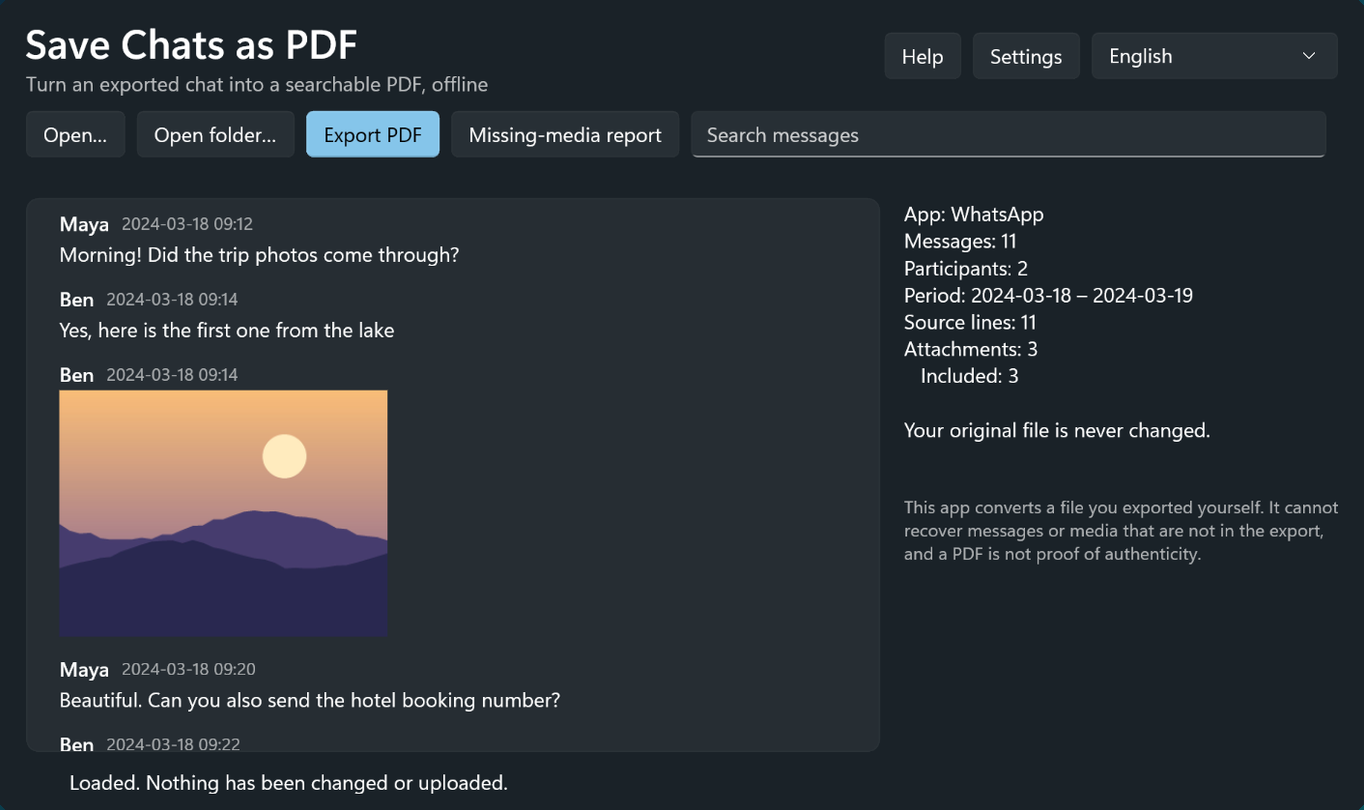
Drop in the .zip, the export folder or the chat file. The app recognises the chat app automatically. A built-in sample chat lets you try it first.
-
Preview and search
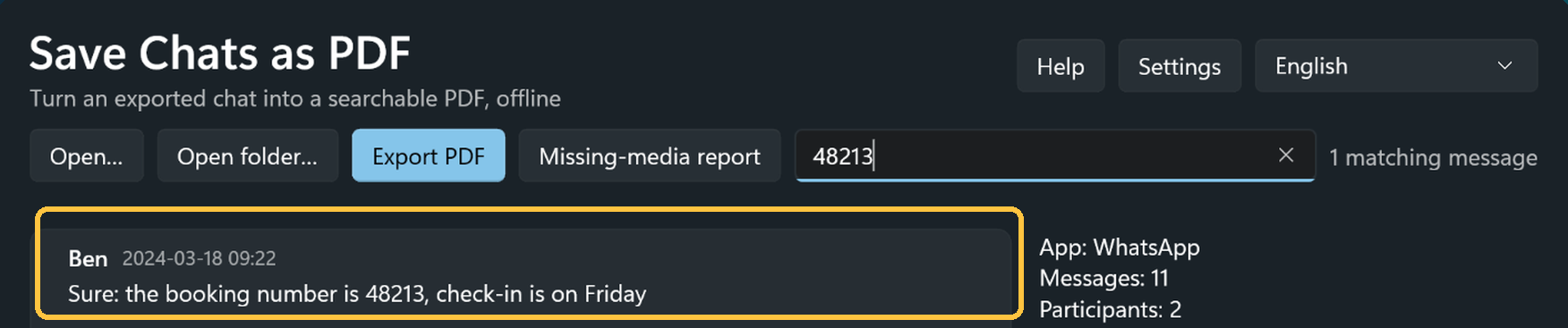
Look through the conversation, search for a message (a booking number, for example) and choose the people and date range you want.
-
Export the PDF
The PDF is written to the folder you choose, in date order, with an optional table of contents by month and photos inline. Your original file is never changed.
-
Check the result
The app reads the finished PDF back and checks every message. Anything missing, such as media that was not in the export, is listed in a separate report.
What to know first
- It converts a chat file you exported yourself. It cannot recover messages or media that are not in the export.
- Videos and voice notes appear as placeholders. A Discord data package contains only the messages you sent yourself, and its attachments are links that are not included.
- The PDF is evidence-friendly, not certified. It does not prove that the original messages are authentic.
- It is an independent product, not affiliated with WhatsApp, Meta, Telegram, LINE, Kakao or Discord.
Do it in minutes

Save Chats as PDF
A one-time purchase in the Microsoft Store. Everything is processed on your PC; nothing is uploaded.

Questions
Can it read my chats straight from WhatsApp?
No. You export the chat from the chat app first, then open the exported file in Save Chats as PDF.
Can it save a ChatGPT conversation as a PDF?
No. It reads exports from WhatsApp, Telegram, Messenger, Instagram, LINE, KakaoTalk and Discord, not AI chatbot conversations.
Does the PDF include photos?
Photos appear inline when your export includes media. Export from the WhatsApp phone app and choose to include media.
Is it the same app as ChatToPDFIQ?
Yes. ChatToPDFIQ was renamed Save Chats as PDF. It is the same app and the same Microsoft Store listing.