How-to guide · MailPackIQ
How to convert EML and MSG email files to PDF in bulk on Windows
By Mirage Interactive ·
The short answer
An .eml or .msg file is a single saved email. To turn one into a PDF you can open it in a mail program and print it to PDF. For a folder of hundreds that gets slow, and the attachments are left behind.
MailPackIQ converts a whole folder of saved .eml and .msg files in one batch, on your PC, with the attachments saved next to each PDF and a report of every file.
One email at a time, for free
-
Get the emails as files
Gmail: open the message, the three-dot menu, "Download message" (an .eml file). Thunderbird: File, Save As, File (.eml). Outlook: drag the email from Outlook into a folder to save it as .msg.
-
Open the file
Open an .eml in Windows Mail, Outlook or a browser-based viewer. An .msg file opens in Outlook.
-
Print to PDF
Choose Print, pick "Microsoft Print to PDF" as the printer and save. Repeat for each email.
A whole folder in one batch with MailPackIQ
MailPackIQ works on .eml and .msg files you have already saved. It does not connect to an email account.
-
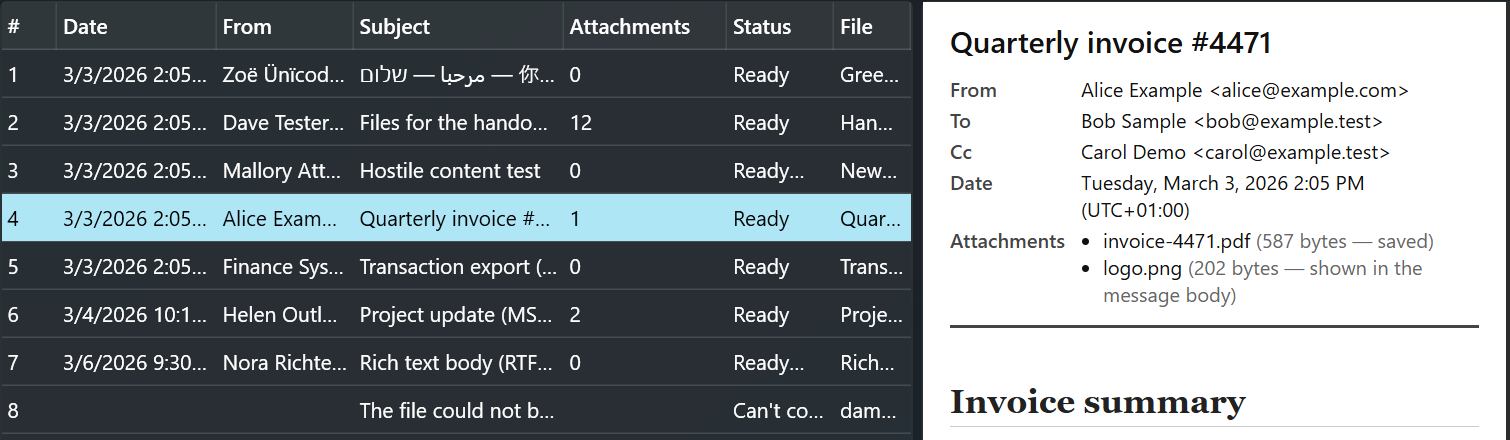
Add your email files
Add files or a whole folder of .eml and .msg files.
-
Check and choose
Preview each email in the list. Pick one PDF per email or one combined PDF with an index and bookmarks, on A4 or US Letter paper.
-
Export
The PDFs, the attachment folders and a report go to the folder you choose. Files are named in date order with the date, sender and subject, and nothing is overwritten.
-
Read the report
The report lists every file as converted, converted with notes, failed or skipped, so nothing is dropped silently.
What to know first
- It converts saved .eml and .msg files. It does not open Outlook data files (PST, OST) or MBOX, and it does not connect to an email account.
- Attachments are saved as they are, not converted to PDF. Encrypted email is not supported, and there is no OCR or redaction.
- Your original email files are only read, never changed, and remote images in emails are never loaded.
- It needs Windows 11 (x64).
Do it in minutes

MailPackIQ
A one-time purchase in the Microsoft Store. No subscription, and no email account to connect.

Questions
Can I convert an Outlook PST to PDF?
Not directly. MailPackIQ reads saved .eml and .msg files, not PST or OST data files. In Outlook you can drag emails into a folder to save them as .msg files, then convert that folder.
Are attachments converted too?
No. They are saved in their original format in a numbered folder next to each PDF and listed in the report.
Does it upload my emails?
No. Your emails are converted on your PC, and remote images are never loaded.