How-to guide · MervanIQ
File name too long on Windows: find every name and path that will break
By Mirage Interactive ·
The short answer
Windows has long enforced a 260-character limit on a full path, and 255 characters on a single name. Older tools still stop at it, and so do some zip and sync programs. Reserved names such as CON or NUL, forbidden characters and look-alike names cause failures of their own when a folder moves to another computer or operating system.
You can list the over-long paths with one PowerShell line, and Windows 10 and 11 can allow longer paths if you opt in. To check a whole folder against every rule at once, MervanIQ scans names and structure and tells you what will break.
Check by hand
-
List paths over the limit
In PowerShell, from the folder you plan to copy, list every item whose full path is 260 characters or more.
Get-ChildItem -Recurse -Force | Where-Object { $_.FullName.Length -ge 260 } | Select-Object FullName -
Shorten the path
Move the folder closer to the drive root (for example C:\Work) or shorten the longest folder names. This is the most reliable fix, because it works for every program.
-
Or allow long paths
Windows 10 (1607) and later can allow paths longer than 260 characters through the "Enable Win32 long paths" policy or the LongPathsEnabled registry value, but each program must also support them, so older tools can still fail.
Scan the whole folder with MervanIQ
MervanIQ looks at names and folder structure only. It never opens file contents and never renames anything.
-
Choose the folder and where it is going
Pick modern or older Windows tools, macOS, case-sensitive macOS, Linux, or all of them at once.
-
Select Scan
Only names and folder structure are read, never file contents.
-
Read the verdict
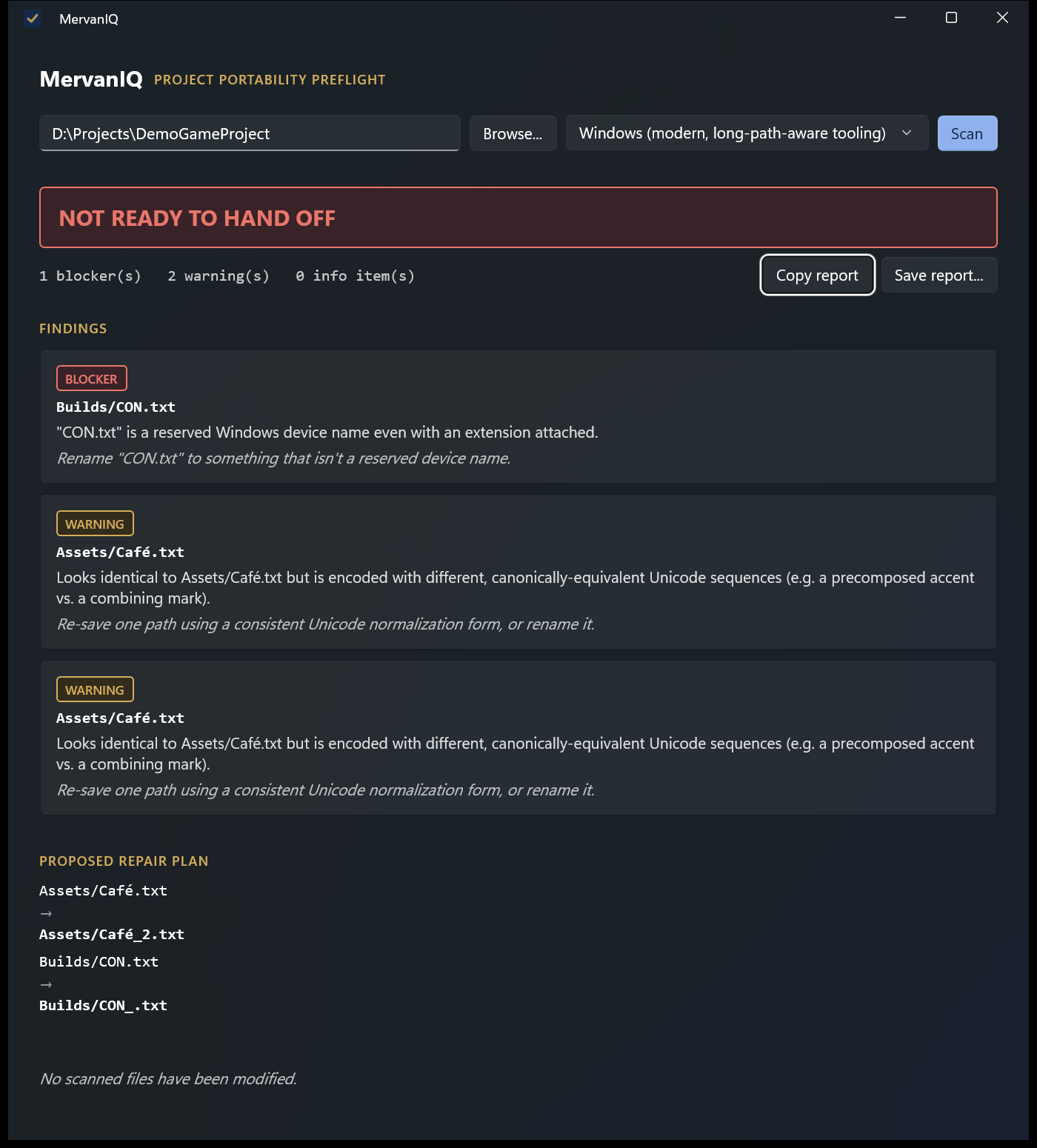
Each finding is graded as a blocker, a warning or information, with a suggested fix. For example Builds/CON.txt is a reserved Windows name even with an extension.
-
Make the renames you agree with, then scan again
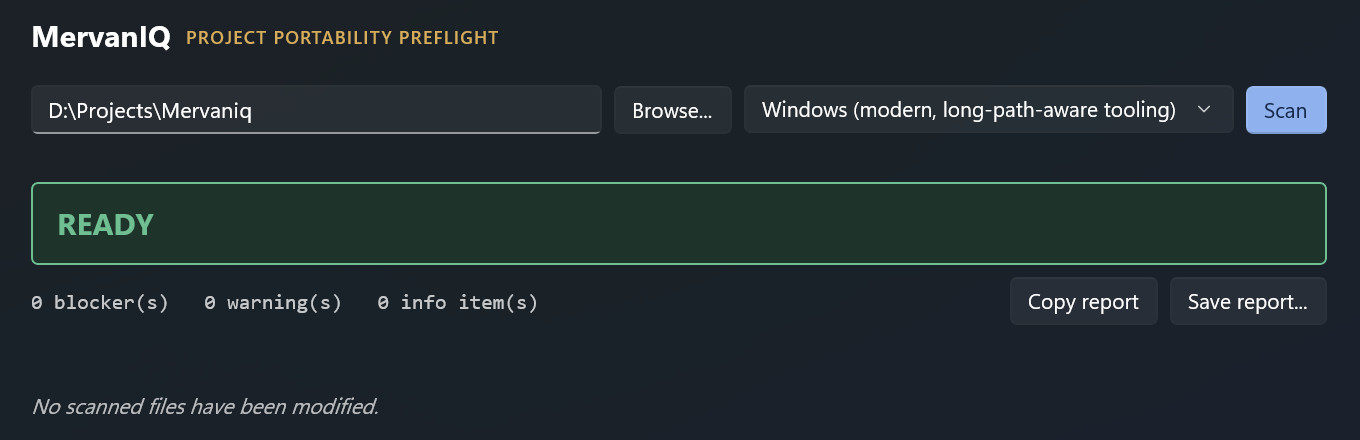
MervanIQ proposes renames and checks that they would not collide with anything else. You make the changes yourself, then scan again until it says ready.
What it checks
- Reserved device names (CON, PRN, AUX, NUL, COM1 to COM9, LPT1 to LPT9, with or without an extension), forbidden characters, and trailing spaces or dots.
- Paths past 260 characters and names past 255; case collisions such as Report.txt and report.txt; Unicode look-alikes that collide once normalised.
- Symbolic links and junctions are reported, never followed.
- A clean result means none of its checks found a problem. It cannot promise every copy or transfer will succeed, and it does not look inside zip files or Git history.
Do it in minutes

MervanIQ
A one-time purchase in the Microsoft Store. The scan runs on your PC; there is no account and no upload.

Questions
Will it fix the files for me?
No. It proposes renames and checks that they would work, but it never renames, moves or deletes anything. Only you know whether something inside the project still refers to the old name.
Does it check Git repositories?
It checks the folder as it is on disk, including a working copy of a repository. It does not read Git history or the contents of zip files.
Is the 260-character limit gone in Windows 11?
It can be lifted for programs that opt in, once long paths are enabled. Many tools, zip programs and sync clients still enforce it, so a folder that works on your PC can still fail elsewhere.